

Why It Matters
How it Works
1
Open Visibility & Sharing for any property
Inside the property's settings, go to the *Visibility & sharing* tab. The current slug appears under *Custom URL path*, with the default already populated based on your property name.
2
Click the menu, choose Edit
The three-dot menu next to the slug opens an edit dialog. Type your preferred slug — letters, numbers, and dashes only.
3
Confirm carefully
A confirmation popup appears with a check box and a warning that changing the slug will break all existing links and deep links for the property. Confirm only if you haven't shared the current URL yet — or if you're prepared to reshare it.
Pricing
Editing your guidebook slug is included on every paid plan
How to Best Share Your Guidebook With a Custom Slug URL?
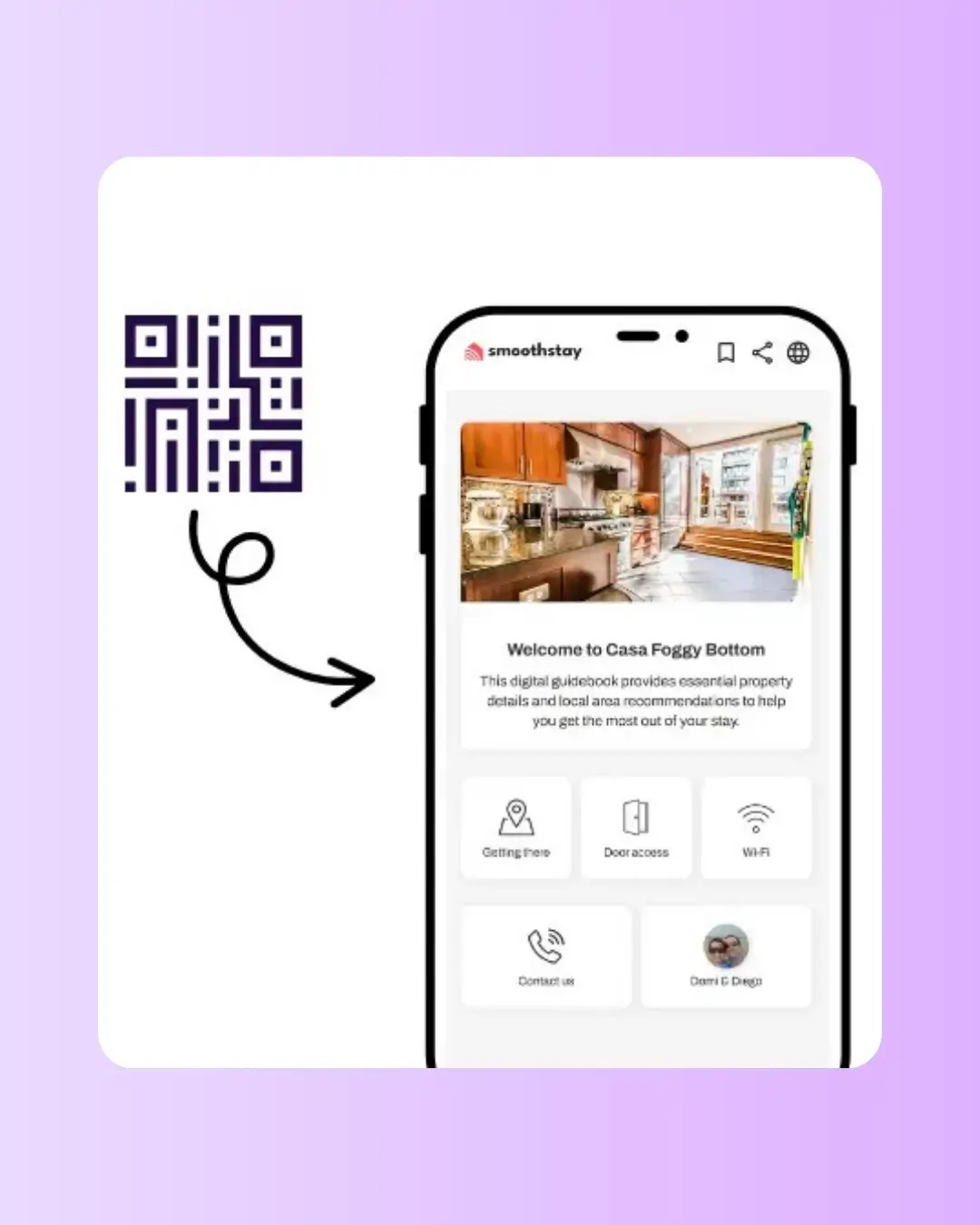
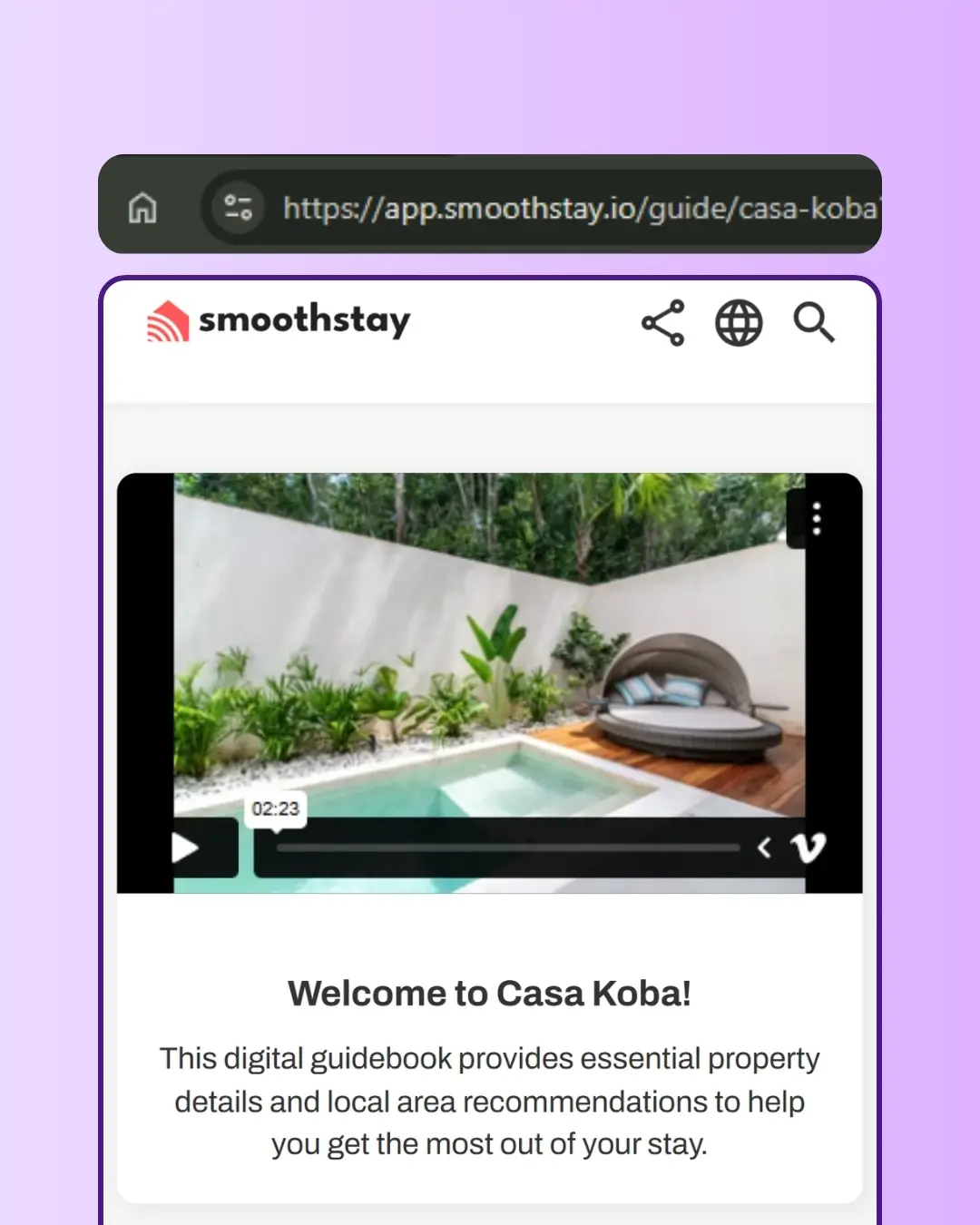
Set your slug before you share the link the first time. Once a guidebook URL has been sent to guests — by email, on a check-in document, on a printed QR code — changing the slug breaks every link. The cheapest moment to customize is right after creating a new property.
Keep it short and on-brand. "casa-koba" beats "casa-koba-playa-del-carmen-4br-pool". A short slug looks better, fits in a text message, and stays memorable. If you have multiple properties under one brand, build a naming convention (e.g., "koba-beach", "koba-mountain") so every property's URL feels coherent.
Avoid year numbers, season tags, or anything that dates your URL. "casa-koba-2026" is fine until 2027 rolls around. Use timeless naming so you don't end up needing to change the slug later — and breaking the very links you want to be lasting.
Related features