
A clear, printable Wi‑Fi sign with the exact network name, easy‑to‑read password, a QR code for automatic connection, and a brief troubleshooting note helps Airbnb guests get online instantly and reduces late‑night messages. The post also offers a ready‑to‑copy template and practical tips on placement, design, and pairing the sign with a digital guidebook for a seamless guest experience.
For many guests, the WiFi password is one of the first things they look for after arrival. Not the coffee, not the thermostat. The WiFi. If they can't find it in about ten seconds, you get a text, usually while you're in the middle of dinner.
We've hosted long enough to know that a good WiFi sign quietly prevents more arrival-day messages than almost anything else you can hang on a wall. So here's exactly what belongs on it, where to put it, how to make the QR code that connects a phone by itself, and a template you can copy right now.
What should a WiFi sign for your Airbnb include?
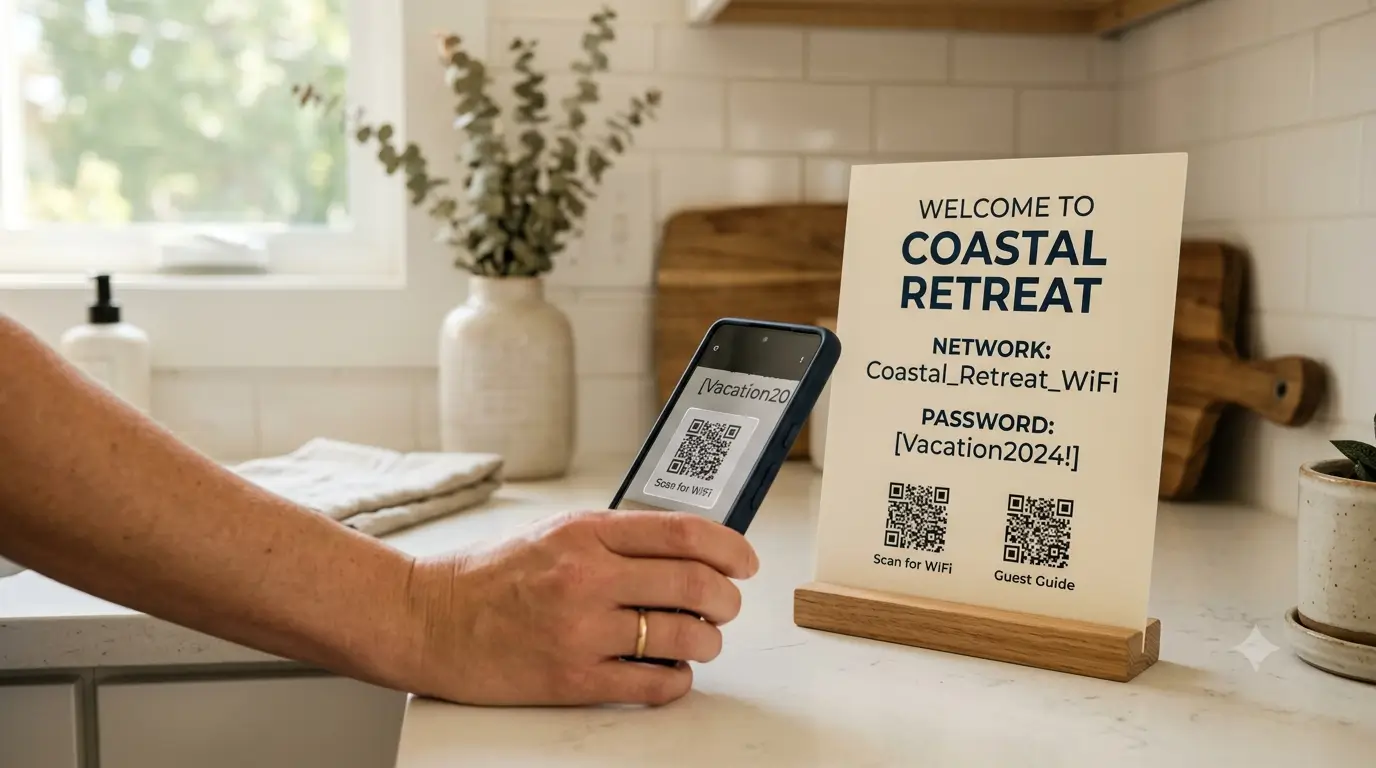
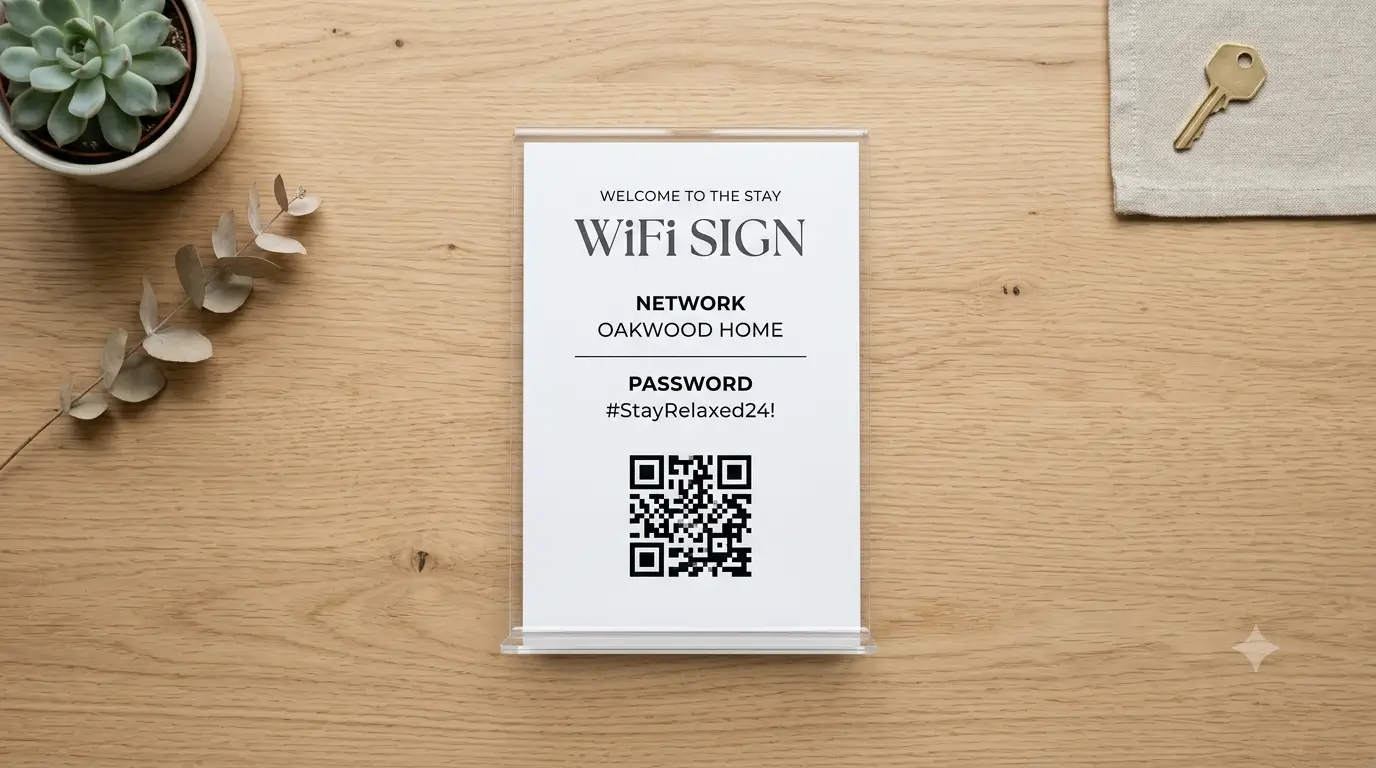
A WiFi sign needs four things: the exact network name, the password written so a stranger can type it without guessing, a QR code that joins the network automatically, and one line on what to do if the connection drops. That's the whole list. Everything past those four is decoration, and decoration is what makes a sign hard to read.
There's a reason to be strict about it. Many guests take a photo of the WiFi sign so they can access the password later without returning to the entry area. Guests snap a picture so they can retype the password in the bedroom without walking back to the kitchen. That photo is doing real work for the rest of the stay, so the sign has to survive a fast, slightly-blurry phone shot, not just look good from a foot away.
Get the network name and password exactly right
Write the network name exactly as it shows up in the phone's WiFi list, capital letters and underscores and all. "TheCasa_5G" and "thecasa5g" are two different networks to a guest squinting across the room, and the wrong guess sends them straight to their messages.
For the password, your enemy is ambiguity. Is that a zero or a capital O? A one, a lowercase L, or a capital I? Guests can't tell, and a password they mistype three times feels like a broken house before they've even sat down. A few ways to kill the guesswork:
Print the password in a font where zero and O look different, or add a tiny note like "(that's a zero)" next to the tricky character.
Put the password on its own line, larger than the surrounding text, with nothing crowding it.
If you control the router, consider resetting the network password to something clean and human: three short words, no symbols, no ambiguous characters. "riverboatlemon" beats "Xq7#l0Oi1!" every single time, and it's still plenty secure.
Add a QR code that connects the phone for it
This is the upgrade that makes a plain sign feel effortless. A WiFi QR code stores your network name and password in a format phones understand, so when a guest points their camera at it, the phone offers to join the network with one tap. No typing, no zero-versus-O.
It works on most modern phones out of the box: Recent iPhone and Android devices can typically join WiFi networks by scanning a properly formatted WiFi QR code with the built-in camera. You don't need an app, and neither does your guest.
Making one takes a minute. Search for a free WiFi QR code generator, enter your exact network name and password, choose your security type (almost always WPA/WPA2), and download the image. Drop it onto your sign at a decent size, at least an inch and a half across so a camera locks onto it fast. Print it, scan it with your own phone, and confirm it actually connects before you hang it. QR codes that were never tested are how you end up with a very confident-looking sign that does nothing.
Keep the written password on the sign anyway. Some guests won't scan, some cameras act up, and the plain text is your fallback.
Where to put the sign
The best spot is wherever a guest first stops moving. For most rentals that's the kitchen counter or the entry table, the place people set their keys and their bag. A second small sign near the couch or the bed pays for itself, because that's exactly where someone realizes they need to reconnect and don't want to get up.
Kitchen counter or island: the default first-stop for most guests.
Entry table or console: they see it before they've even taken their shoes off.
Bedside or living room: the reconnection spot, where the "what's the password again" moment actually happens.
Avoid the inside of a cabinet or a drawer. If a guest has to open something to find the WiFi, the sign has already lost to a text message.
What to do when the WiFi drops (put it on the sign)
Every network hiccups eventually, and when it does at 9pm on a Saturday, the guest's only move is to message you. One line on the sign takes that off your plate. If you're comfortable allowing guests to troubleshoot, include simple restart instructions for the internet equipment:
If the internet drops, unplug the black router by the TV for 30 seconds, then plug it back in and wait two minutes for the lights to turn solid.
Name the device by color and location, because "the router" means nothing to someone who's never seen your house. That single sentence resolves the large majority of connection problems without you touching your phone.
The copy-paste WiFi sign template
Here's a clean starting point. Swap in your details, delete the brackets, and you have a sign that covers the four essentials without clutter.
📶 WiFi
Network: YOUR_NETWORK_NAME
Password: your-password-here
(that's a zero, not the letter O)
Scan to connect automatically → [WiFi QR code]
Everything else about the house → [Guidebook QR code]
Keep the network and password as the biggest text on the sign. The QR codes sit below, labeled so guests know which one does what. That second QR is where a WiFi sign stops being just a WiFi sign.
One sign for the whole house
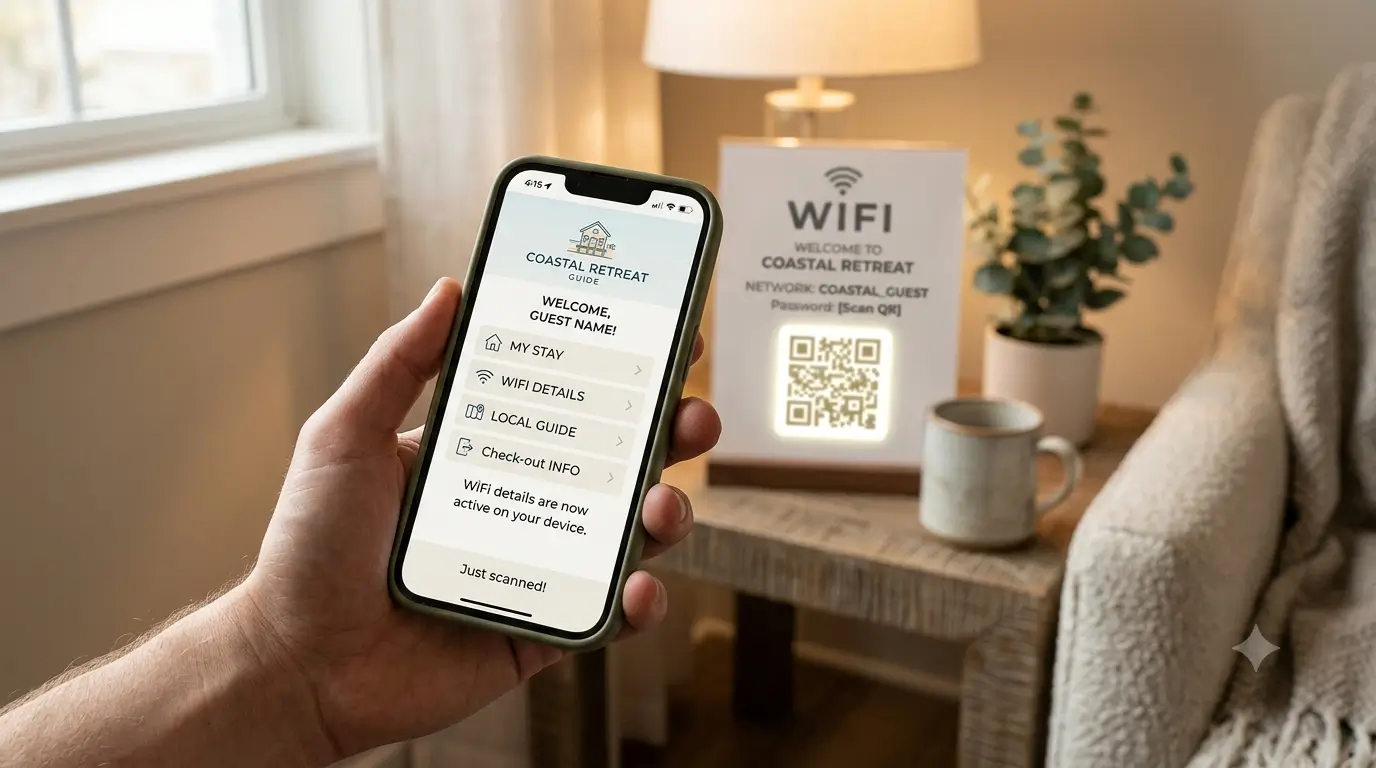
Here's the move we actually use. The WiFi QR gets a guest online. Once they're connected, a second QR opens the digital guidebook, where the same password lives alongside the checkout time, the trash day, the good taco place, and everything else they'd otherwise text you about. The WiFi sign becomes the front door to the entire stay.
Two things make this work. The WiFi QR joins the local network without needing the internet, so it gets the guest connected first. The guidebook QR needs that connection to load, which is exactly why it comes second in the sequence. SmoothStay generates the guidebook QR codes and deep links for you, and because the guidebook is digital, you update the WiFi password once and it's correct everywhere instead of reprinting a stack of signs. If you've ever changed a router password and then found the old one taped to three walls, you know why that matters.
We go deeper on the messaging side of this in our guide on how to share WiFi with guests, and on codes generally in how to create QR codes for rental properties. If you're building the guidebook side, the digital guidebook walkthrough is the place to start.
FAQ
How do I make a WiFi QR code for my Airbnb?
Use any free WiFi QR code generator. Enter your exact network name and password, pick your security type (WPA/WPA2 for almost all home routers), and download the image. Test it with your own phone before printing, then place it on your sign at least an inch and a half wide so cameras read it quickly.
Do guests need an app to scan the WiFi QR code?
No. iPhones on iOS 11 or later scan WiFi QR codes directly in the Camera app, and most Android phones on version 10 or later do the same. The phone reads the code and offers to join the network with one tap.
Should I laminate my WiFi sign?
It is recommended. Laminating or a simple acrylic frame keeps it clean and readable through spills and steam. For a bedside sign, a small framed card is plenty. Whatever you use, make sure it doesn't create glare that hides the QR code under a lamp.
What if my WiFi password is long and complicated?
Change it if you can. A password of three short, lowercase words is easy to type, easy to read on a sign, and still secure. If you can't change it, print it larger than everything else, break it into readable chunks, and annotate any character a guest might misread.
Where's the best place to put a WiFi sign?
Where guests first stop moving, usually the kitchen counter or entry table, plus a small second one near the bed or couch where people reconnect. Skip the insides of drawers and cabinets; if they have to go looking, they'll message you instead.
Do I still need a WiFi sign if I have a digital guidebook?
Yes, and it's the bridge to it. The guidebook needs an internet connection to load, so the physical WiFi sign is what gets the guest online in the first place. Pair the WiFi QR with a guidebook QR on the same sign and one scan leads to the next.
Get the sign already designed for you
If you'd rather not build this from scratch, we made a free set of printable Airbnb signs, WiFi included, that you can customize in the free version of Canva and print at home in a few minutes. Add your network, drop in your QR codes, and you're done. And if you want the WiFi sign to open into everything else your guests ask about, you can have a digital guidebook running behind that second QR the same afternoon.
Latest articles
Airbnb Host Burnout: The Workload Was Never the Problem for Us
Airbnb host burnout is rarely about the hours for us. It's about being on call. What ten years of hosting taught us about the systems that reduce the load.
Book Direct With a Hotel: What Guests Want When They Call
Guests who book direct with a hotel want more than a discount. What small operators need to catch the enquiry, and what to send once the booking is theirs.

The Airbnb Extra Guest Policy: How Strict Do You Actually Need to Be?
An Airbnb extra guest policy that fits the booking, not a blanket rule: why we charge no extra guest fee, how guest reviews change it, and wording to copy.
Guests Not Using the Airbnb App to Check In: Why Your Instructions Never Landed
Guests not using the Airbnb app to check in often never see your instructions. Here's how Airbnb delivers them, and the sequence that gets them through.