
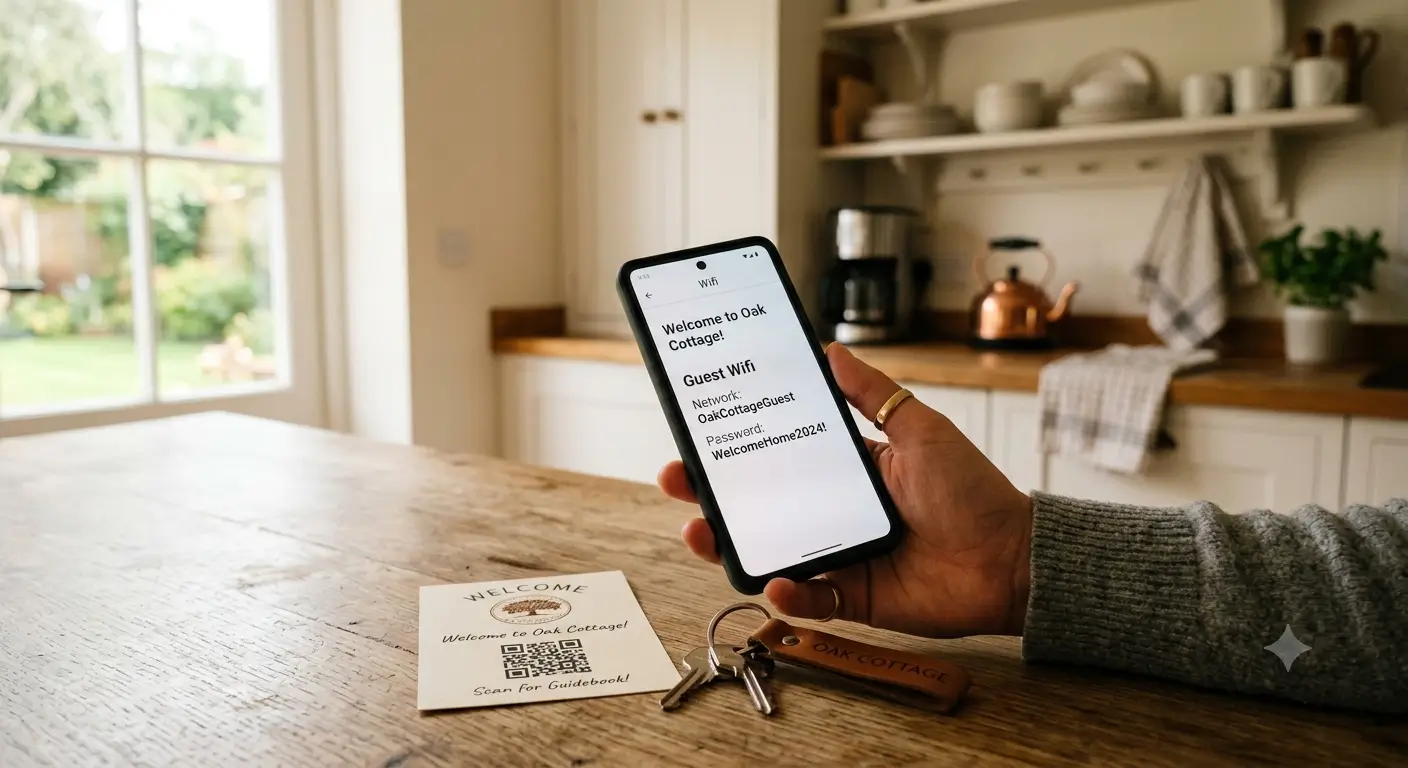
Sharing Wi‑Fi with guests can be streamlined by using a deep‑link in your guidebook, a QR code near the router or on a welcome card, and a copy‑friendly password field, eliminating late‑night texts. Adding a guest network for added security and providing a printable fallback ensures guests can connect quickly and safely.
Wifi is the first thing guests look for and the thing they ask about most. Get it right and they're online before they've put the bags down. Get it wrong and you're answering the same question at 11 PM, every stay, for as long as you own the place.
How do I share my wifi password with guests?
Put the wifi password where guests are already looking: a labeled QR code by the router or on the welcome card, a link that opens straight to a "Wifi" page in your digital guidebook, and a copy-friendly password they can tap and paste instead of squinting and retyping. Avoid the handwritten sticky note that slides behind the nightstand, and don't bury the password on page nine of a house manual nobody scrolls through.
That's the short version. Here's how each method plays out, and which combination we actually run across our own properties.
The methods that work, ranked
There's no single best way. The right answer is usually two or three of these working together, so a guest finds the password no matter where they're standing or how they think to look.
Method | How it works | Best for | Watch out for |
|---|---|---|---|
Deep link to a wifi page | One tap opens the exact wifi article with network name and password | The 11 PM "what's the password" text | Needs a connection to load the page |
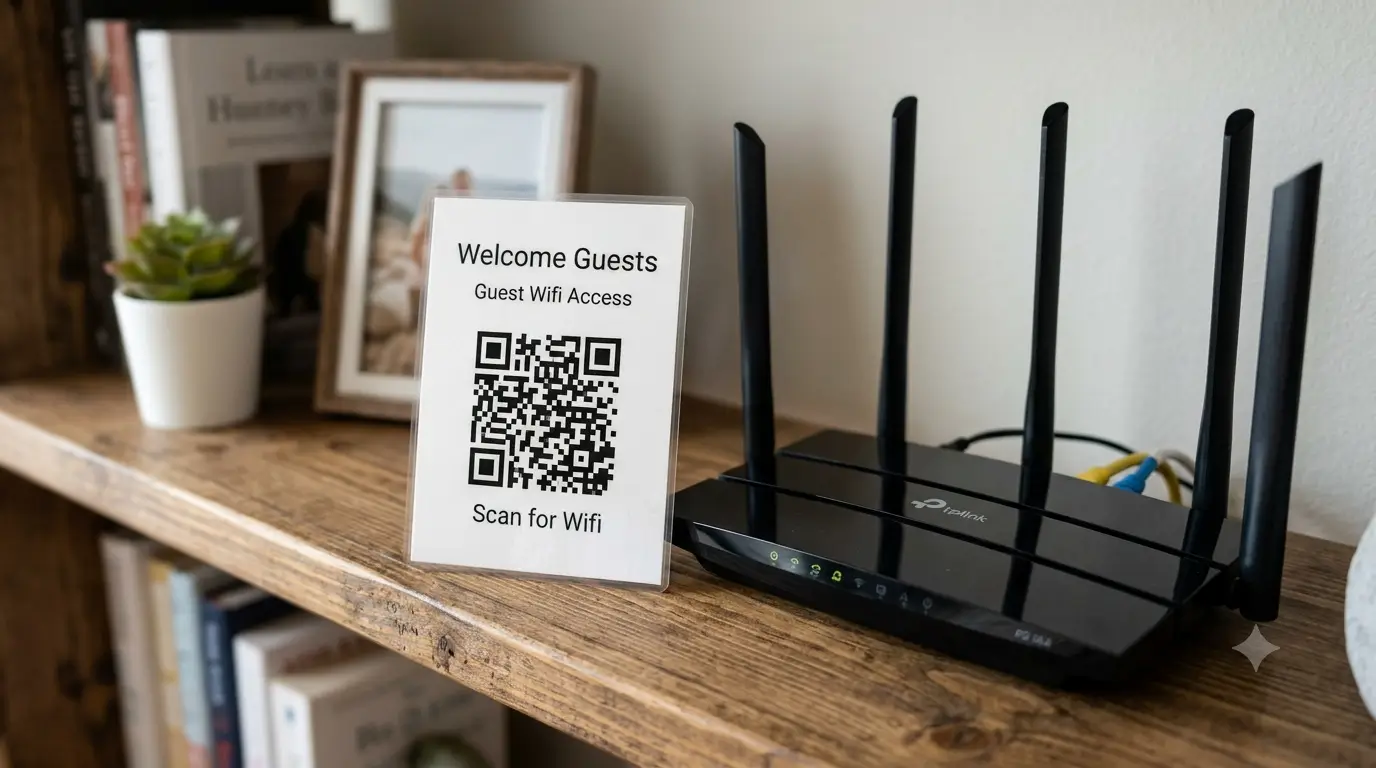
Printed QR code by the router | Guest scans, the wifi page opens on their phone | Arrival, before they've asked you anything | Label it clearly so guests know what it opens |
Copy-friendly password field | Guest taps the password, it copies, they paste into settings | Long or random passwords with symbols | Only works inside a digital guidebook |
Auto-join wifi QR (phone feature) | Scanning joins the network with no typing at all | Tech-comfortable guests, tricky passwords | It's an OS feature, not something most guidebook tools generate |
Printed card near the entry | Network name and password written plainly on a card | Offline fallback and older guests | Update it if you ever change the password |
Give guests the password before they ask
The whole game is timing. A guest who has the wifi in hand at the door never sends the text. A guest who has to hunt for it sends it at the worst possible moment.
Two moves cover almost everyone. First, a deep link straight to your wifi info, dropped into your check-in message or day-before reminder, so the answer is one tap away before they arrive. Second, a QR code on a card by the door or stuck near the router, for the guest who ignored the message and is standing in your kitchen wondering why the TV won't stream. If you want it to look tidy instead of like a ransom note taped to the wall, we keep a set of free printable sign templates you can drop a QR code into and print. In SmoothStay both of these point at the same wifi article in your guidebook, so you write the password once and it shows up everywhere you send guests. If someone still asks, the AI Concierge answers "what's the wifi password" straight from that article without pulling you into the conversation.
One honest caveat, and it matters: a digital guidebook needs a connection to load. On arrival most guests are still on cellular data, so scanning a QR or tapping a link works fine. But if your place has patchy signal, print the network name and password on the welcome card too. Belt and suspenders. The electronic guidebook is what guests reach for on the couch; the printed card is what saves them in the doorway with two bars.
About that auto-join wifi QR code
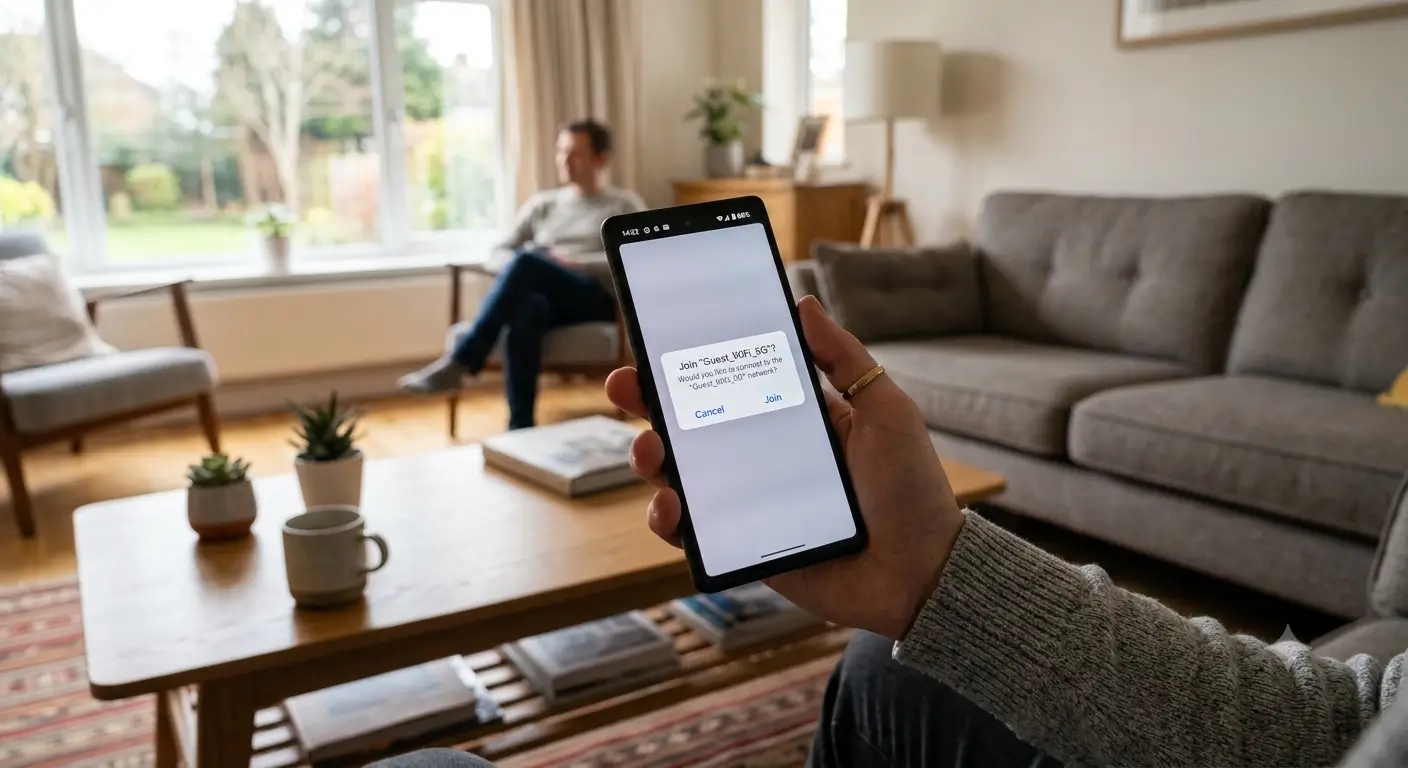
You've probably scanned a QR code that joined a wifi network without you typing anything. That's a real thing, and it's worth knowing about. Modern iPhones and Android phones can generate a QR code from a standard WIFI: text string that carries the network name and password, so scanning it prompts the phone to join automatically. You can make one in your router's app or with any free QR generator in about a minute.
Worth being precise here: that auto-join code is a phone and operating-system feature, separate from any guidebook. A guidebook QR code does something different but complementary. It opens the wifi page so the guest sees the network, the password, and any notes you left (e.g. "Troubleshooting WiFi"). Print both if you like. The auto-join code for the guests who want zero friction, the guidebook QR for everyone else and for all the other questions that follow wifi.
What to avoid
The password taped to the back of the router. Nobody crawls behind the TV console to look. For a few weeks our wifi label lived on the back of the router in the Foggy Bottom house, and guests still texted us for it, because who thinks to look there.
A password buried in a wall of text. If it's the eleventh line of a long house-manual paragraph, it doesn't exist. Give wifi its own page or its own line.
A handwritten note. It gets thrown out with the takeout menus, or the ink smudges, or the last guest walked off with it.
Changing the password mid-stay without telling anyone. If you rotate it between guests, update wherever you've shared it, or you've just created the exact problem you were trying to solve.
Should you put guests on a separate network?
If your router supports a guest network, use it. It keeps guests off the same network as your smart-home devices, your own laptops, and anything else you'd rather not expose, and you can hand out the guest password freely without touching your main one. Most routers from the last few years have this built in and it takes a few minutes to switch on. Then whatever method you use to share the password, you're sharing the guest network's password, and everyone sleeps easier.
FAQ
How do I make a wifi QR code?
Two kinds exist. For an auto-join code, use your router's app or a free QR generator that supports the WIFI: format, which encodes your network name and password so scanning joins the network directly. For a code that opens your guidebook's wifi page instead, generate a deep link to that article and turn it into a QR code, then print it by the router or on the welcome card.
Should I give Airbnb guests my wifi password?
Yes. Guests expect wifi and will ask within minutes if they can't find it. The safer version is to put them on a guest network so you're not handing out access to your primary network and personal devices. Share the guest password openly; keep your main one to yourself.
Is it safe to share wifi with guests?
Sharing wifi is normal and expected. The risk isn't the sharing, it's putting guests on the same network as your private devices. A separate guest network solves that. It isolates guest traffic, so even a careless guest can't reach your files or smart-home gear.
What if my guidebook won't load without wifi?
That's the one real gap with any digital option, since the page needs a connection to open. Most guests arrive on cellular data and never notice. For properties with weak signal, print the network name and password on the welcome card as a fallback, so guests can get onto your wifi first and load everything else after.
Where's the best place to put the wifi password?
More than one place, on purpose. A deep link in your pre-arrival message, a labeled QR code near the router or front door, and a line on the printed welcome card. Guests don't all look in the same spot, so covering the two or three obvious ones catches almost everyone before they text you.
Wifi is the single most-asked guest question, which makes it the easiest one to answer once and never think about again. Put it in the guidebook, point a QR code and a deep link at it, and back it up with a printed card. If you'd rather not wire all that together yourself, you can have a digital guidebook with a shareable wifi page and QR codes running in under an hour, starting on the free plan. Your evenings will notice.
Latest articles

How to Automate Check-In Instructions for Short-Term Rental Guests
Automate check-in instructions for short-term rental guests: the four-send sequence, what goes in a message versus a guidebook, and a copy-ready sample.

Vrbo Premier Host in 2026: Every Listing Now Stands on Its Own Record
Vrbo Premier Host requirements changed in 2026: per-listing scoring, tighter thresholds, quarterly checks. What each one means, and how it compares to Superhost.
Booking.com Guest Messaging Rules: What Hosts Can Send, When, and Why Links Get Removed
Booking.com guest messaging rules, verified at source: how long you can message a guest, why your links get removed, and what the partner terms say.
Vrbo's New Features for Fall 2026: What's Live, What's Gated, and What's US-Only
We sorted Vrbo's new features for fall 2026: what is live globally, what is gated behind eligibility, and what is US-only. Verified against Vrbo's own pages.